NFC Tag Guide phone number / Emergency
This guide shows you how to program a phone number or Emergency information onto your NFC tag. Over 90% of modern phones have NFC activated, but these steps are only for programming the number normal use doesn’t require these steps
🚀 Let's Test Your Phone First!
- Wake up your phone so the screen is lit up.
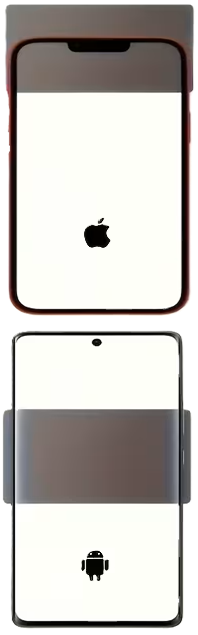
- Tap your phone directly against the NFC tag (aim for the middle-back of an Android or the very top edge of an iPhone).
- Did nothing happen? If your phone didn’t buzz, beep, or open a link, your built-in NFC reader is most likely turned off.
Follow the quick Step 1 below to turn on NFC on your phone. If your NFC tag responds, you can skip to Step 2
iPhone users: Your NFC is permanently on. Skip Step 1)
⚙️ Step 1: How to Turn Your NFC On (Android)
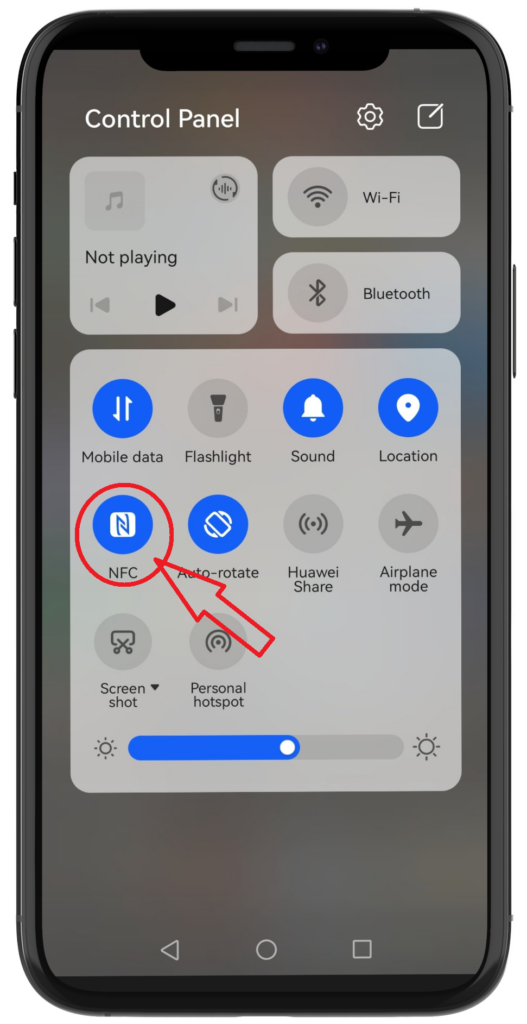
- The Quick Way: Swipe down from the top of your screen to open your Quick Settings panel and tap the NFC icon to highlight it.
The Search Way (If the icon is missing)
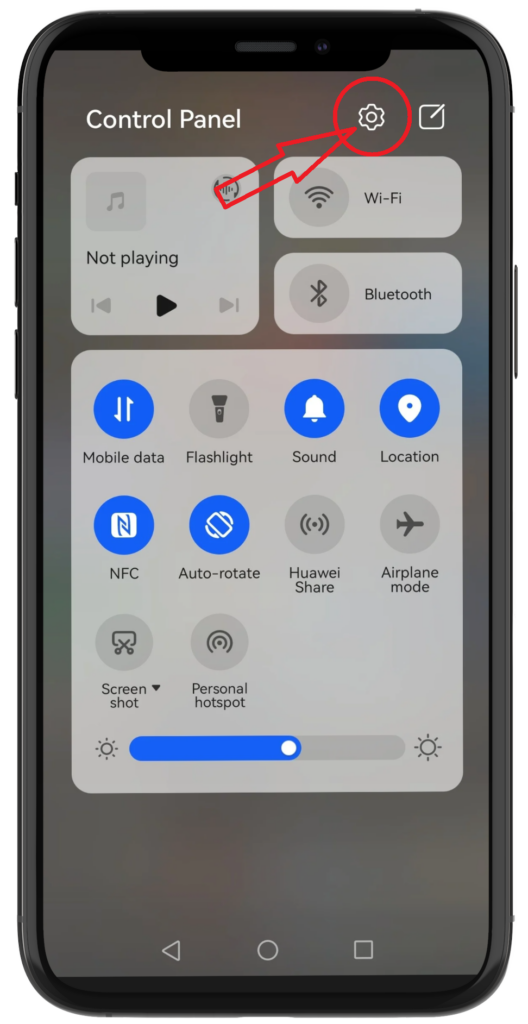
- Open your phone’s Settings (the gear icon).
- Tap the Search Bar (the magnifying glass 🔍).
- Type “NFC” into the search.
- Tap on the first NFC result that pops up to open the hidden menu page.
Slide the switch bar to the ON position.
📥 Step 2: Download the App
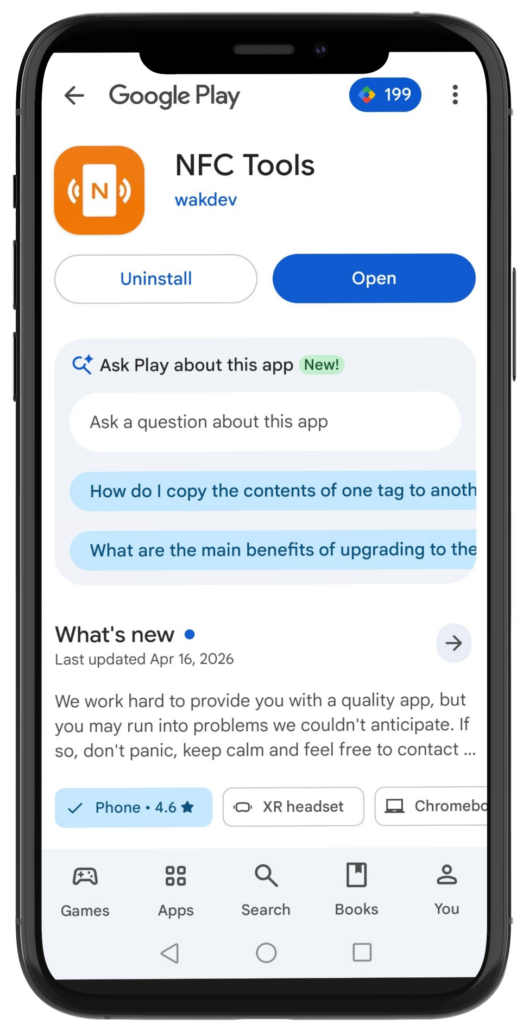
- Click on [Download NFC Tools] button below on your phone according to your device—use the Android link if you have an Android phone, or the iPhone link if you have an iPhone.
- Your phone will open the correct app store.
- Tap Install or Download.
- Depending on your phone, the app may look a bit different, but it will work the same way overall.

Download NFC Tools
📞 Step 3: Program Your Number / emergency information.
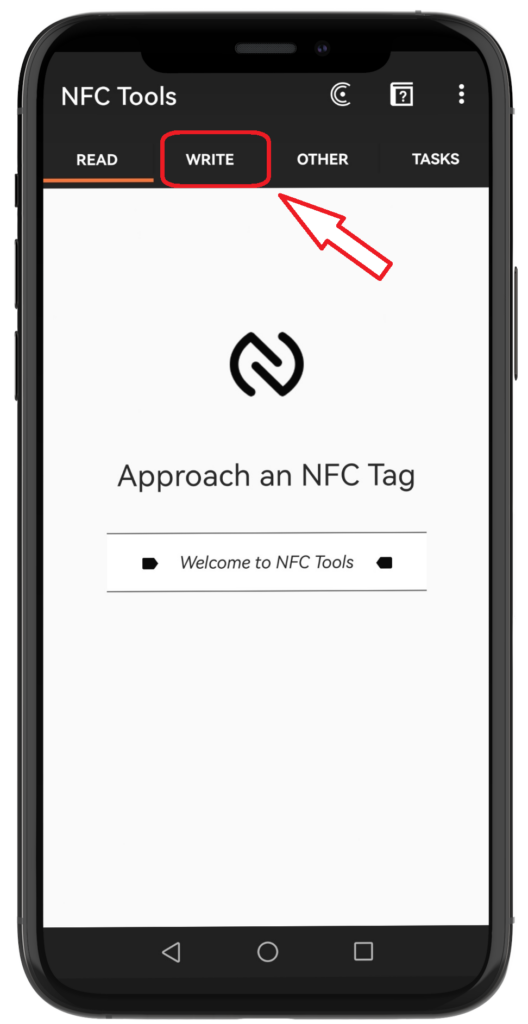
- Open the NFC Tools app.
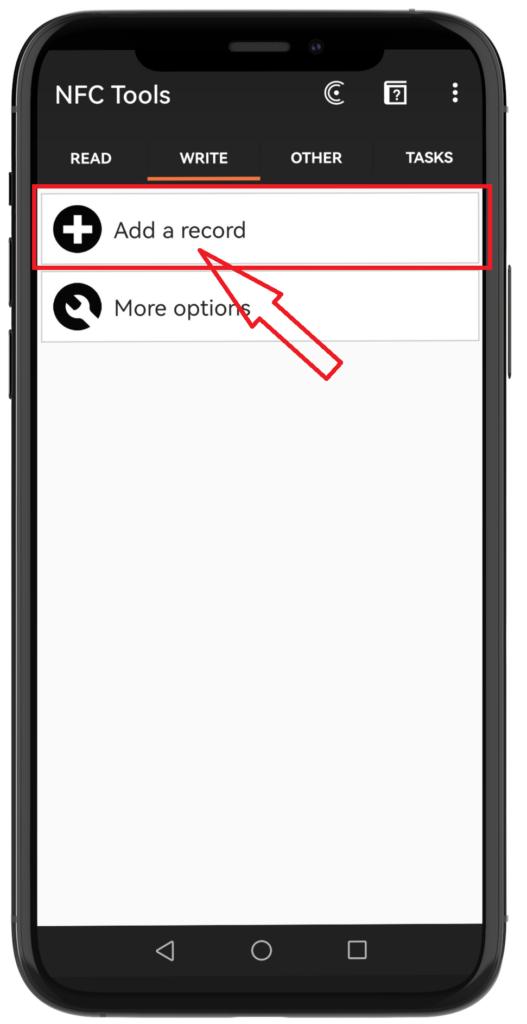
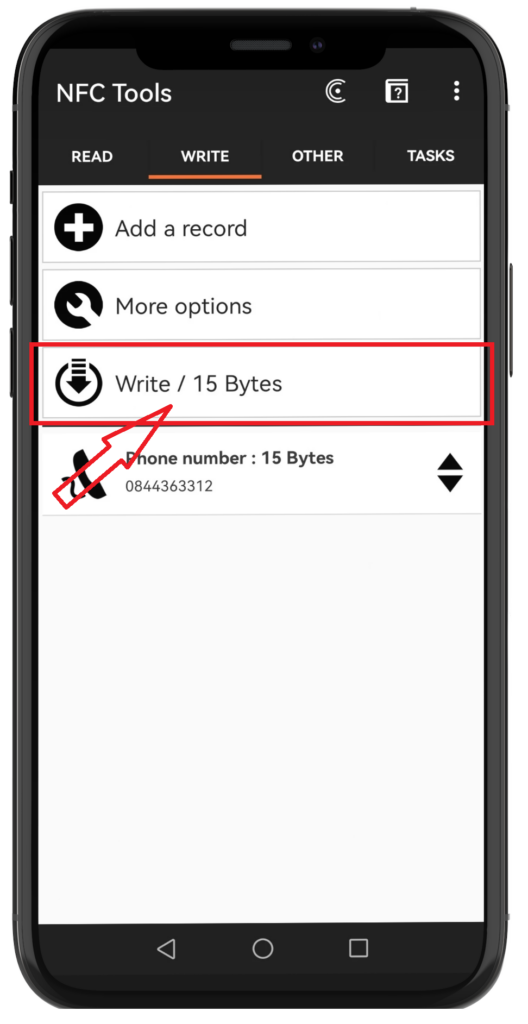
- Tap WRITE at the top.
Tap Add a record.
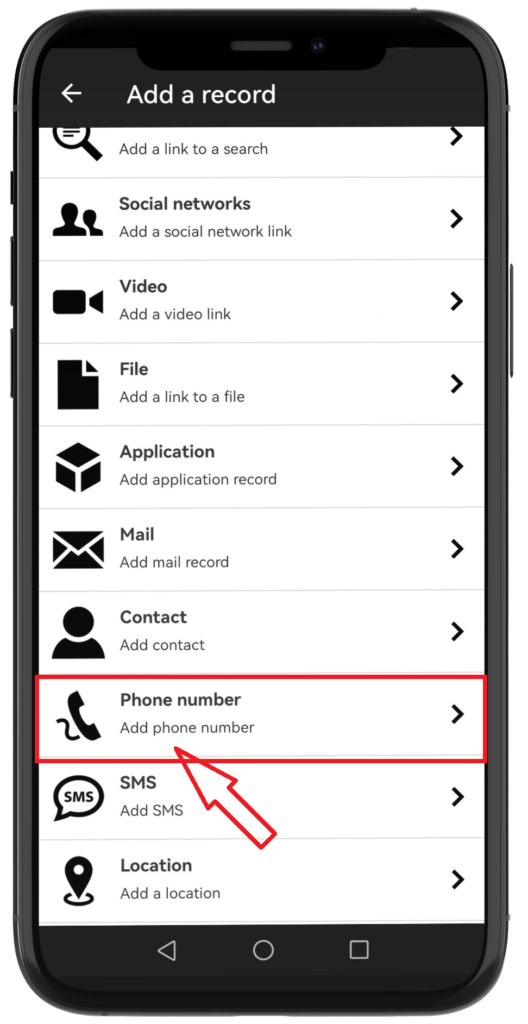
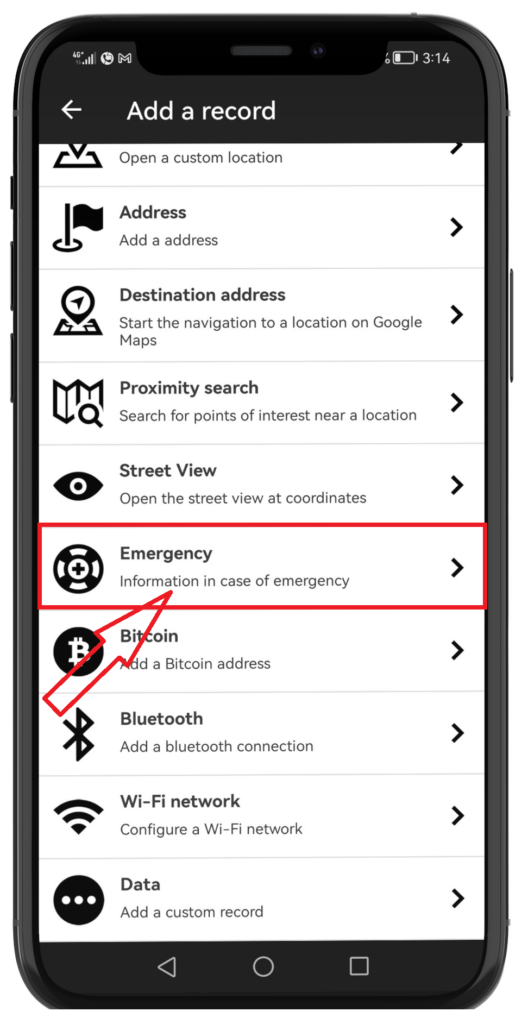
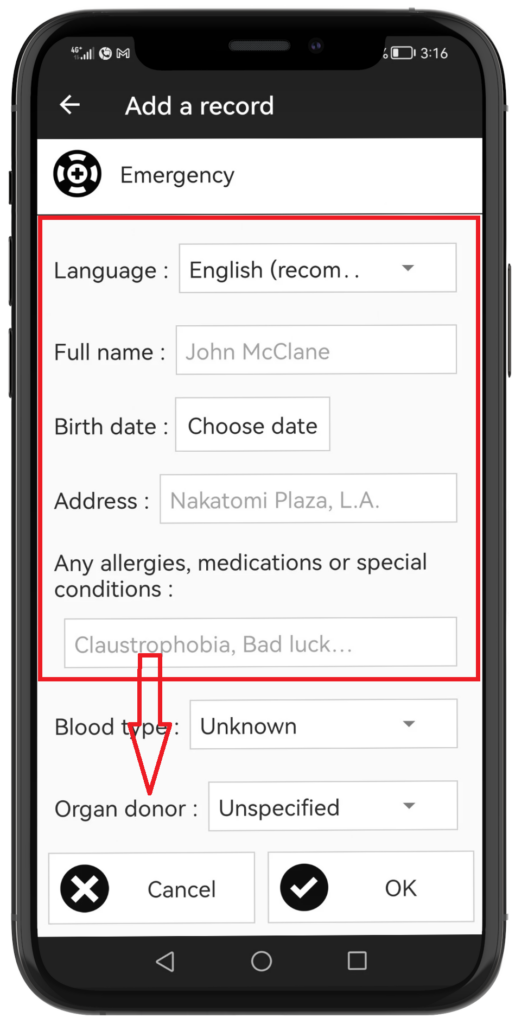
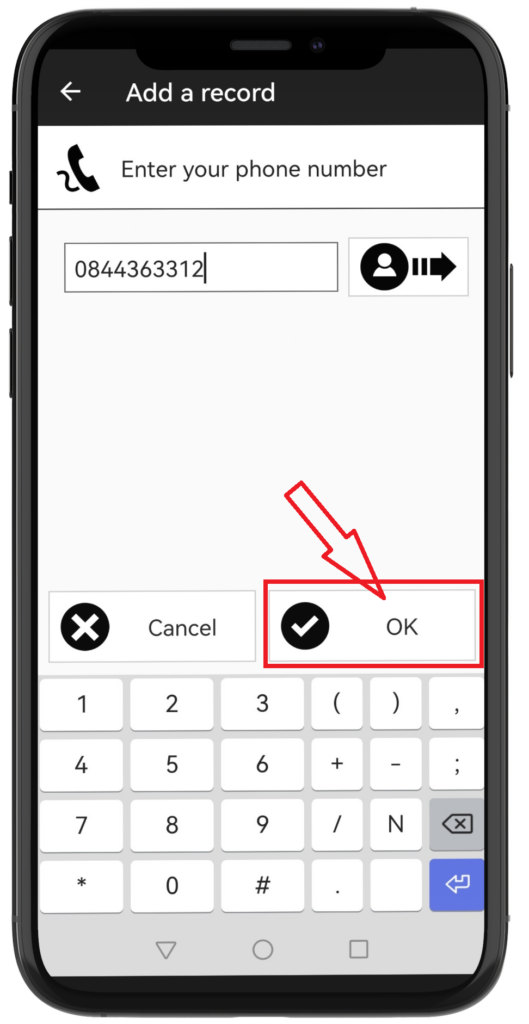
Select Phone number or Emergency from the list.
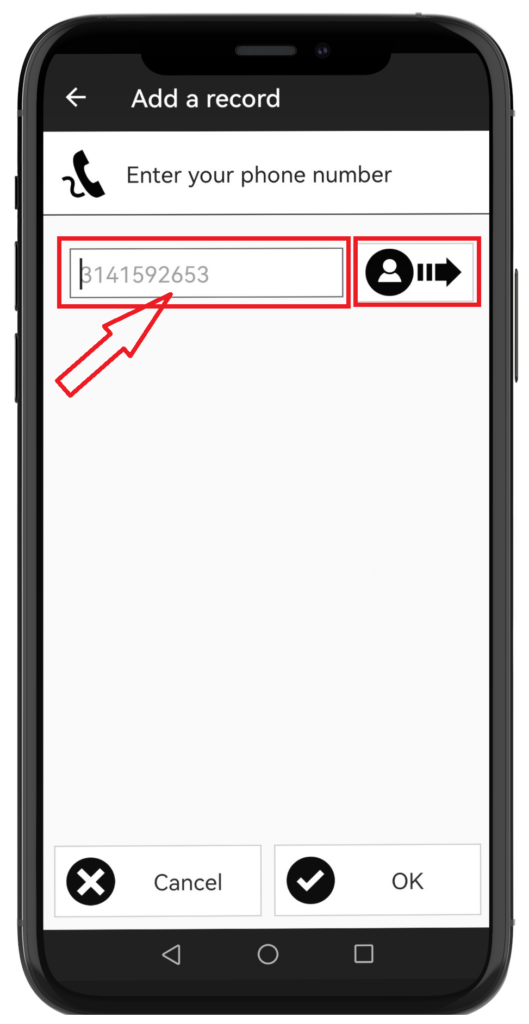
- Type your number.
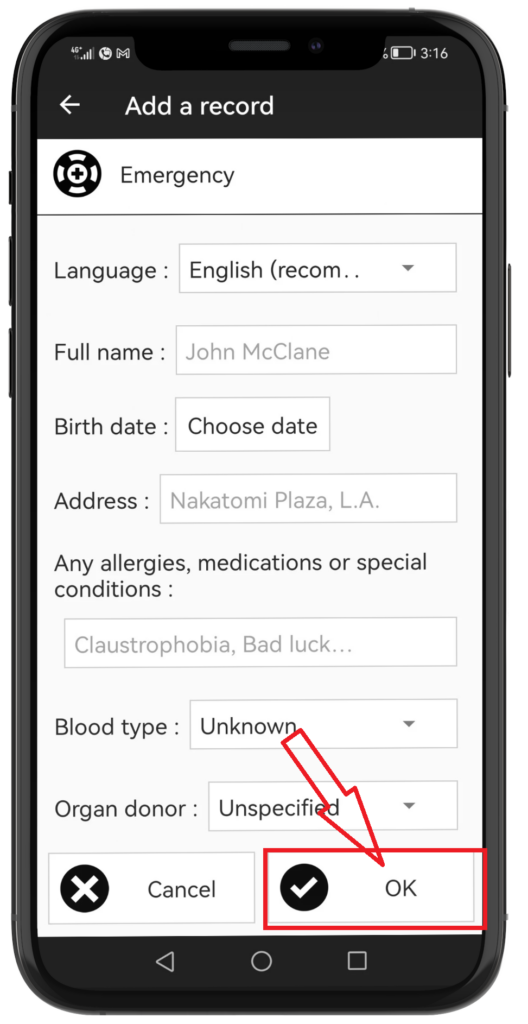
- Or fill in Emergency information depending on what you chose.
Tap OK in the corner.
Tap the Write button.
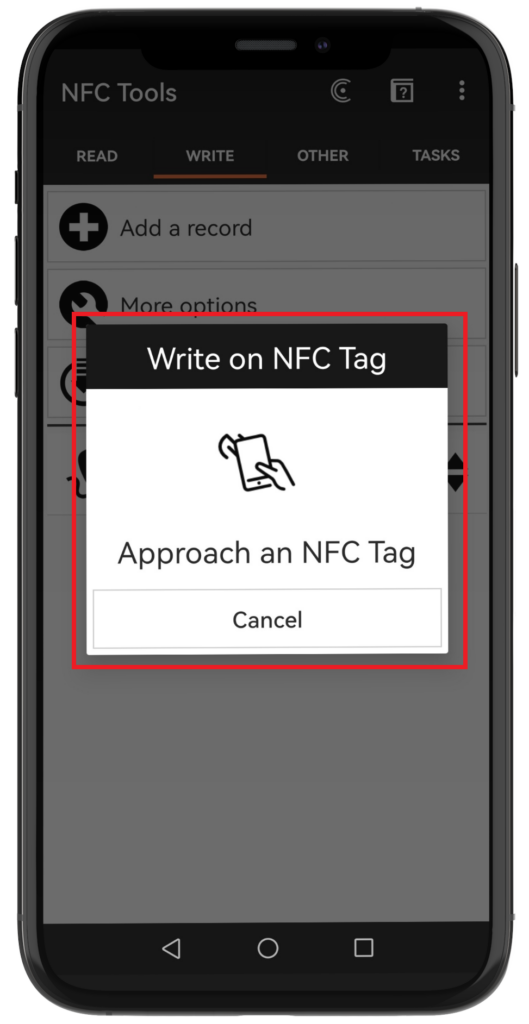
Tap your phone against the tag.
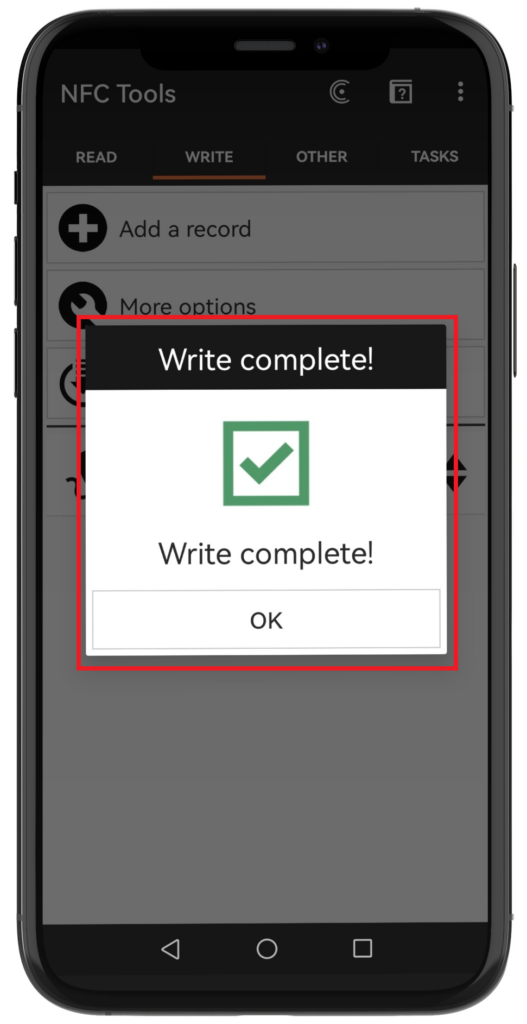
When the pop-up appears, hold the back of your phone directly against the NFC tag until you see the green checkmark. Your tag is ready! 🎉
🛠️ Still Having Trouble?
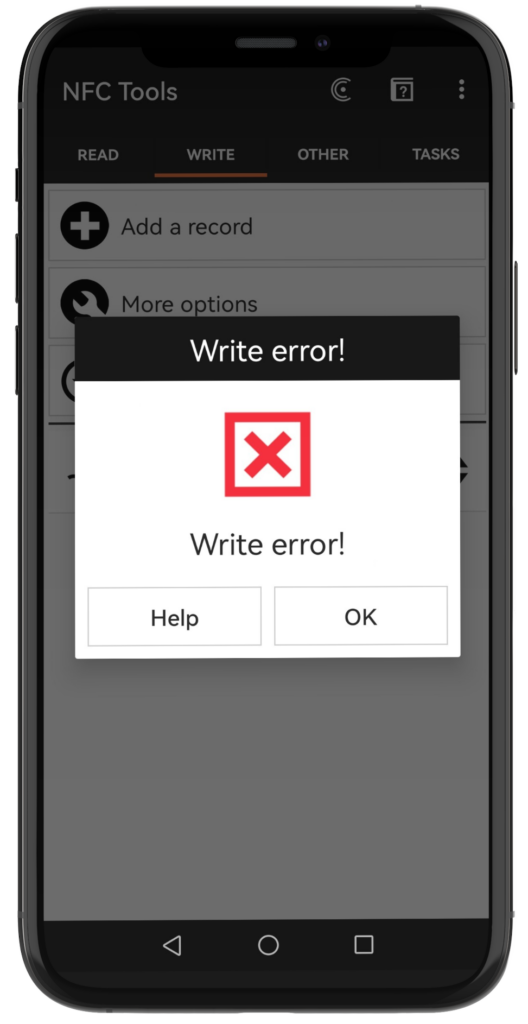
- Got an error? Tap OK on the app and try the scan again.
- Tag not responding? Try adjusting the position of your phone against the tag.
- Still stuck? Message or [Contact us on WhatsApp] for quick help!