NFC Tag Guide phone number / Emergency

This guide shows you how to program a phone number or Emergency information onto your NFC tag. Over 90% of modern phones have NFC activated, but these steps are only for programming the number normal use doesn’t require these steps

🚀 Let's Test Your Phone First!

  1. Wake up your phone so the screen is lit up.
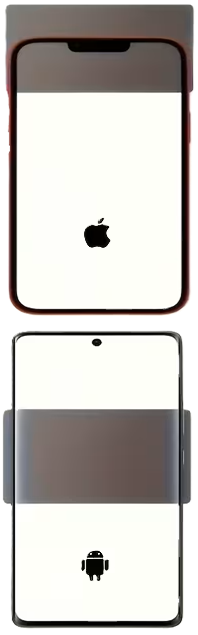
  2. Tap your phone directly against the NFC tag (aim for the middle-back of an Android or the very top edge of an iPhone).
  3. Did nothing happen? If your phone didn’t buzz, beep, or open a link, your built-in NFC reader is most likely turned off.

Follow the quick Step 1 below to turn on NFC on your phone. If your NFC tag responds, you can skip to Step 2


🍏 iPhone users: Your NFC is permanently on. Skip Step 1)
⚙️ Step 1: How to Turn Your NFC On (Android)

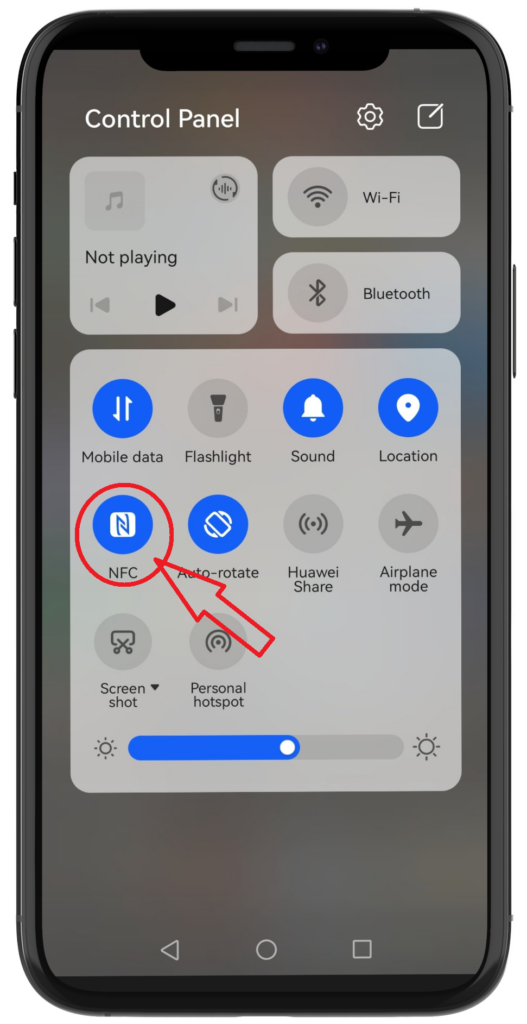
  • The Quick Way: Swipe down from the top of your screen to open your Quick Settings panel and tap the NFC icon to highlight it.

The Search Way (If the icon is missing)

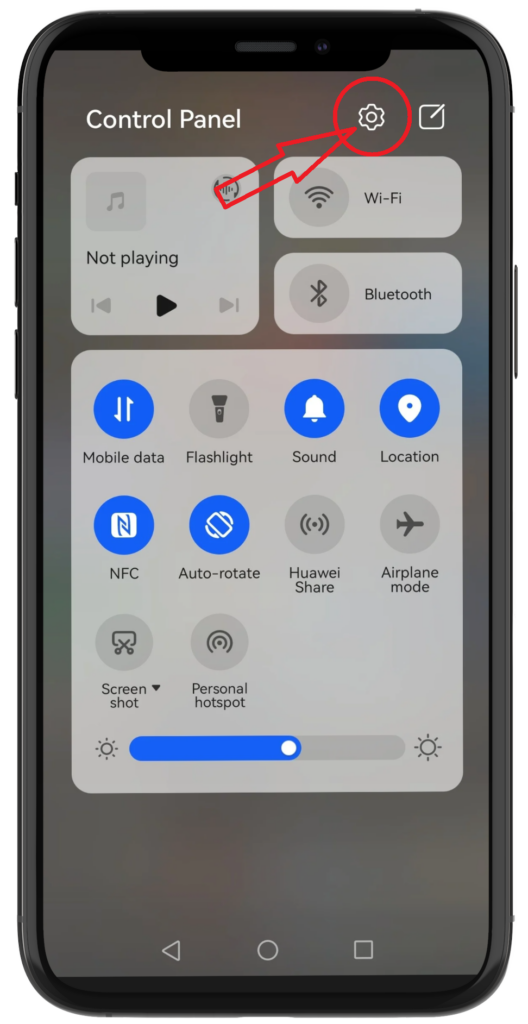
  1. Open your phone’s Settings (the gear icon).
  2. Tap the Search Bar (the magnifying glass 🔍).
  3. Type “NFC” into the search.
  4. Tap on the first NFC result that pops up to open the hidden menu page.

Slide the switch bar to the ON position.

📥 Step 2: Download the App

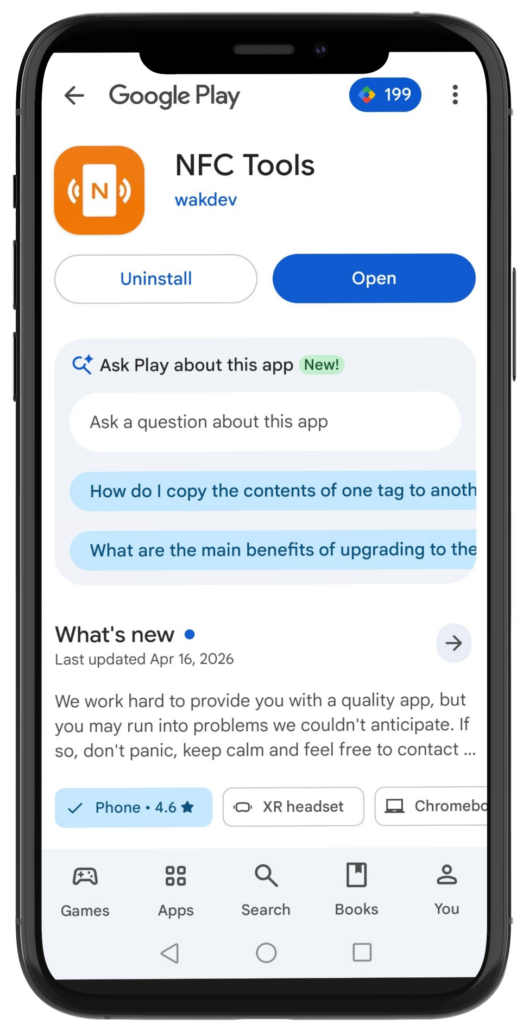
    • Click on [Download NFC Tools] button below on your phone according to your device—use the Android link if you have an Android phone, or the iPhone link if you have an iPhone.
    • Your phone will open the correct app store.
    • Tap Install or Download.
    • Depending on your phone, the app may look a bit different, but it will work the same way overall.


Download NFC Tools

📞 Step 3: Program Your Number / emergency information.

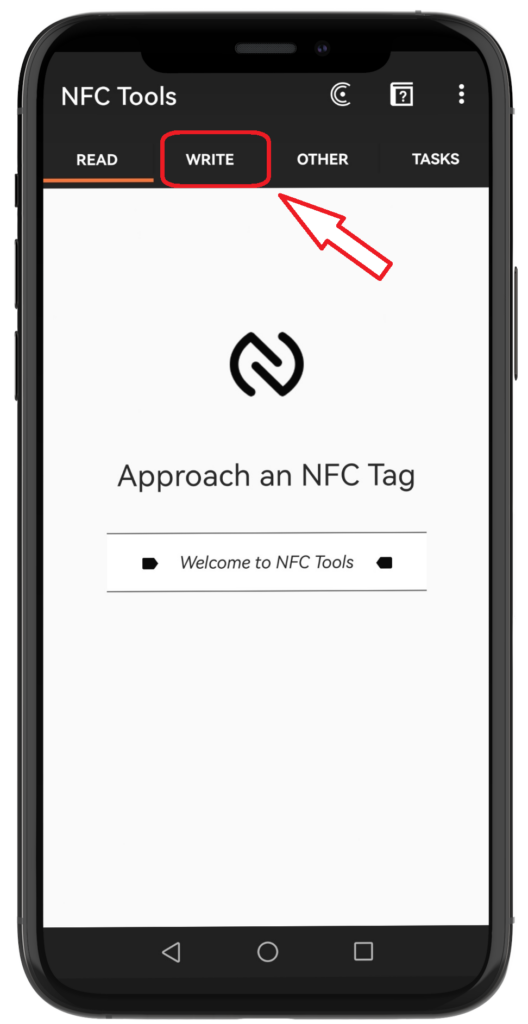
  • Open the NFC Tools app.
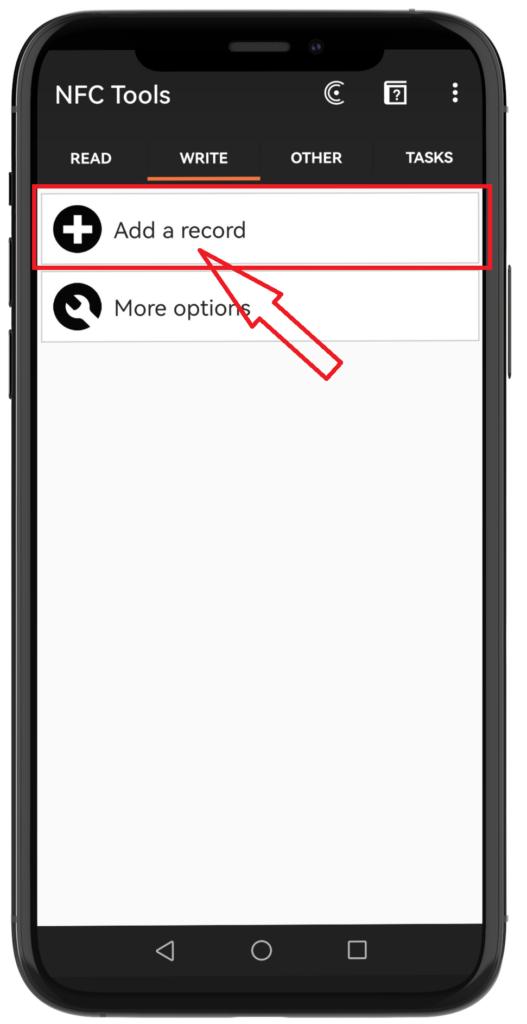
  • Tap WRITE at the top.

Tap Add a record.

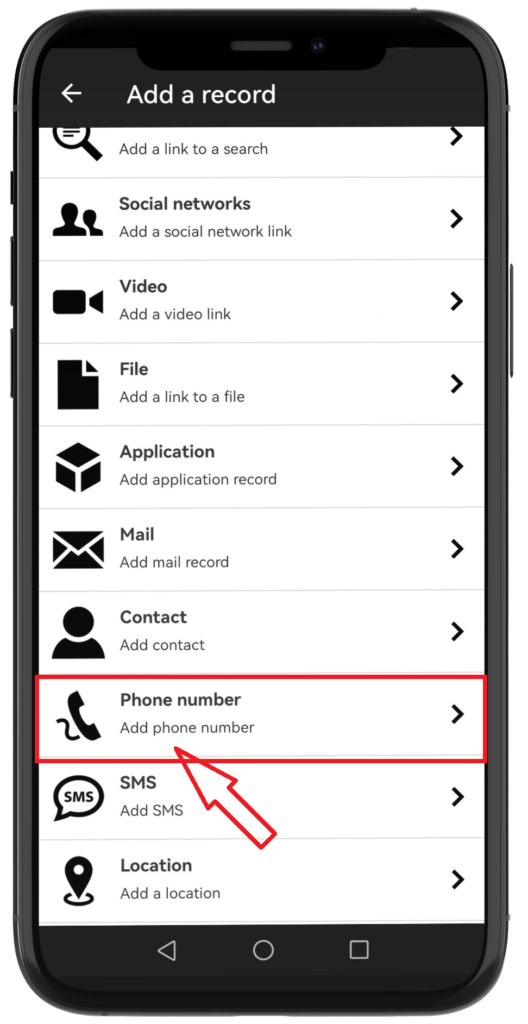
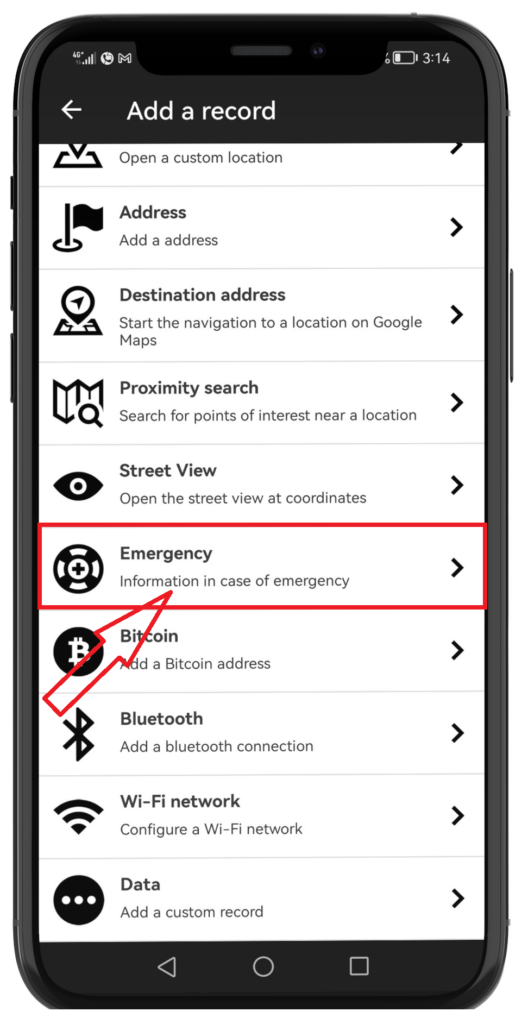
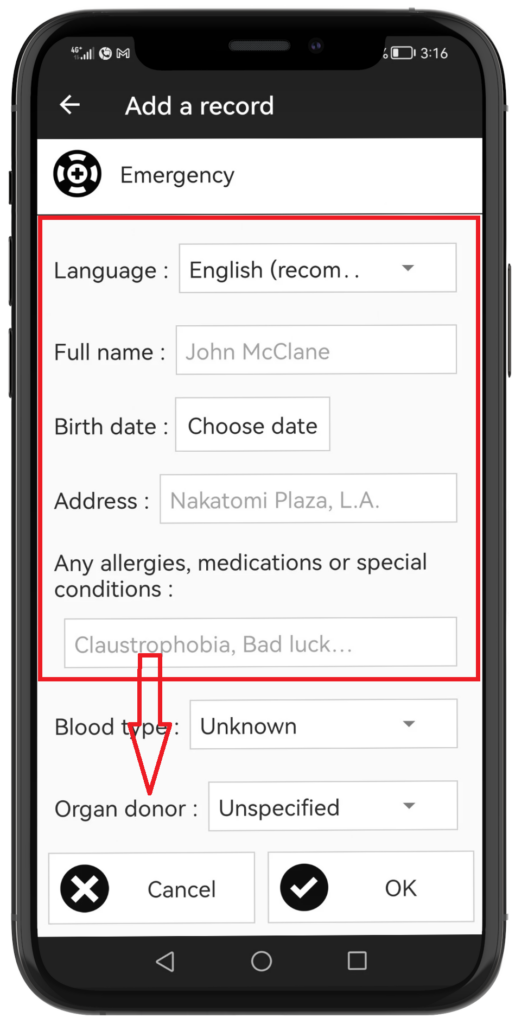
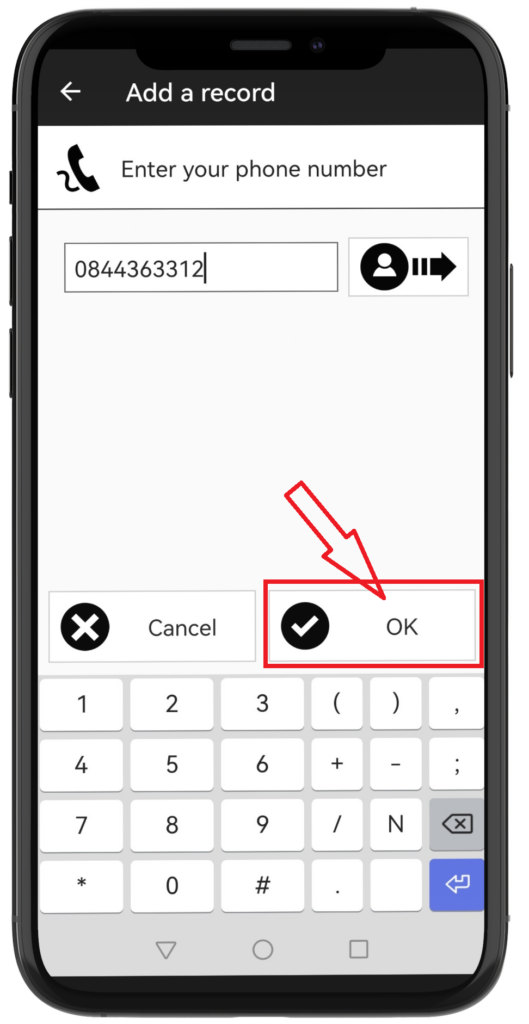
Select Phone number or Emergency  from the list.

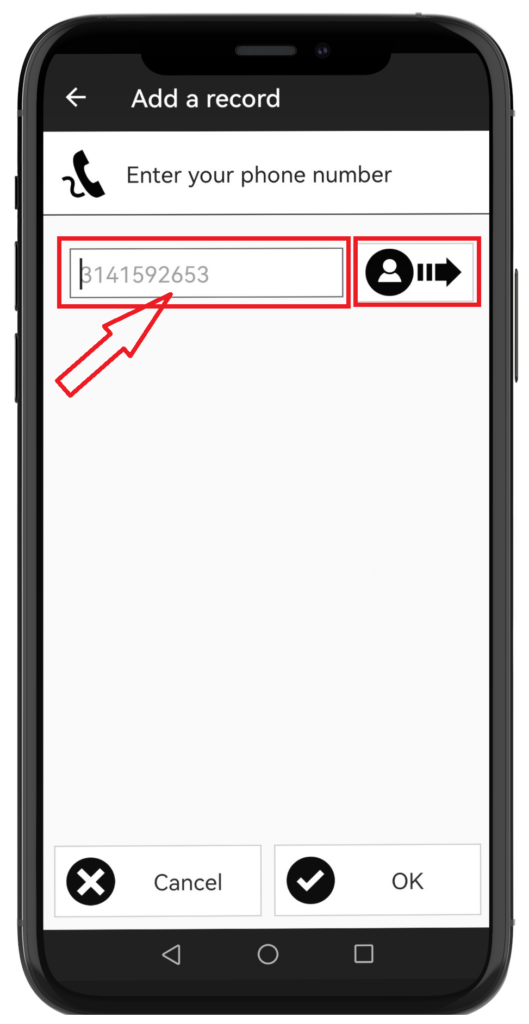
  • Type your number.
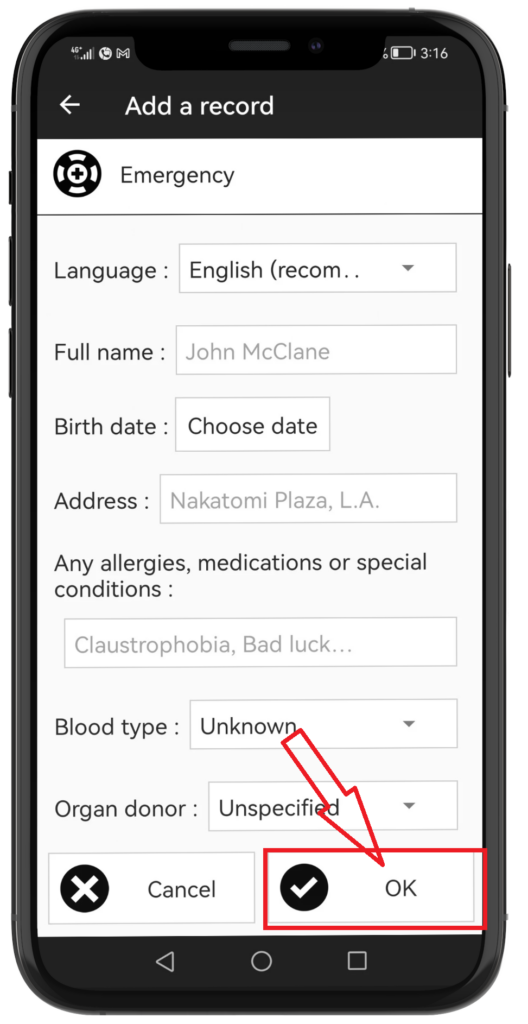
  • Or fill in Emergency information depending on what you chose.

Tap OK in the corner.

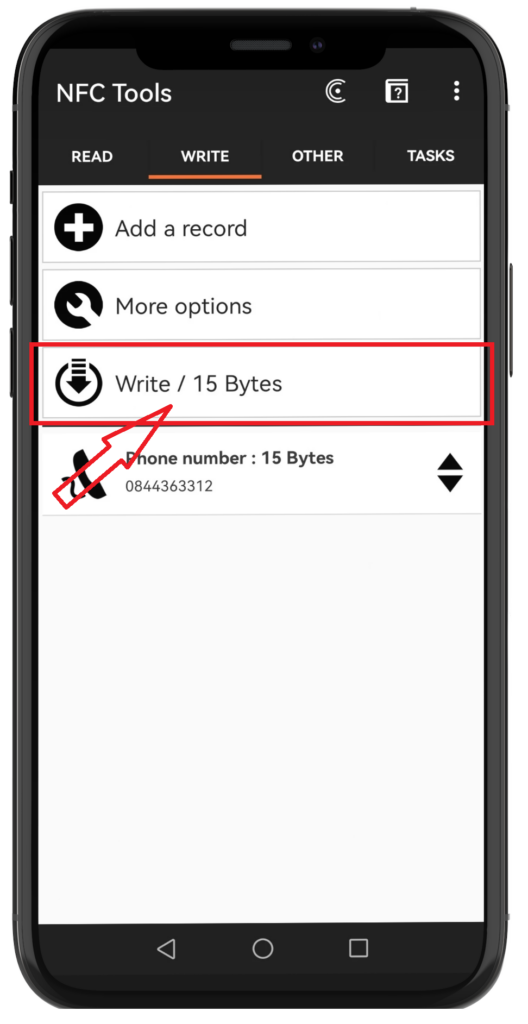
Tap the  Write button.

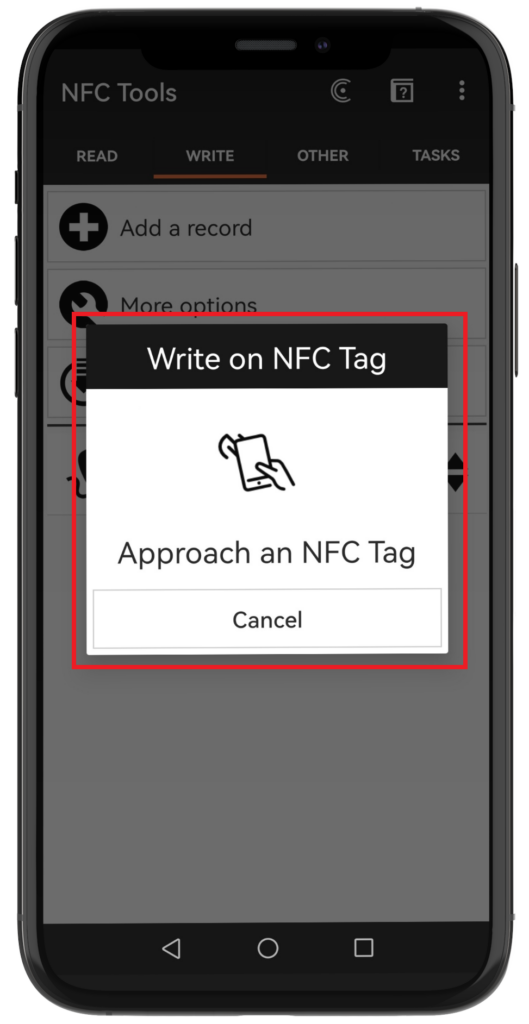
Tap your phone against the tag.

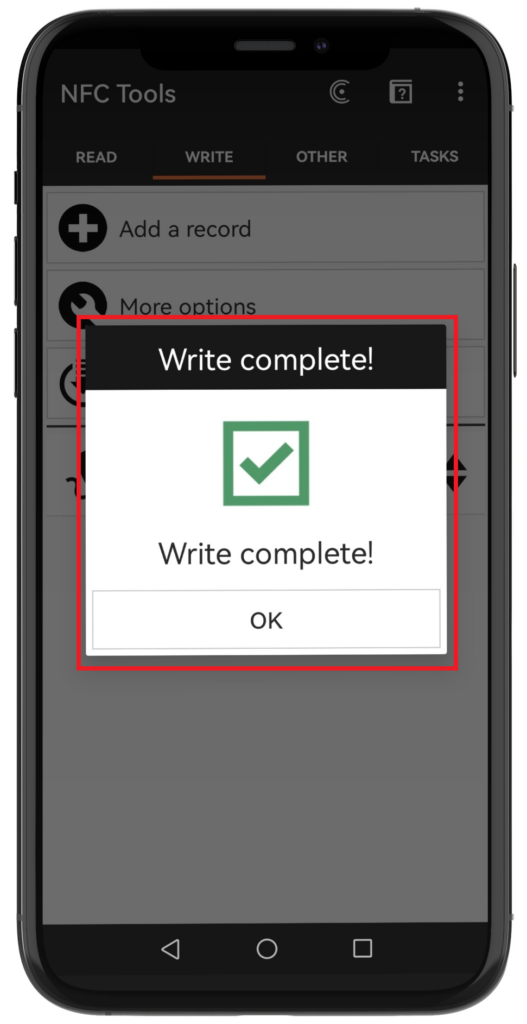
When the pop-up appears, hold the back of your phone directly against the NFC tag until you see the green checkmark. Your tag is ready! 🎉

🛠️ Still Having Trouble?

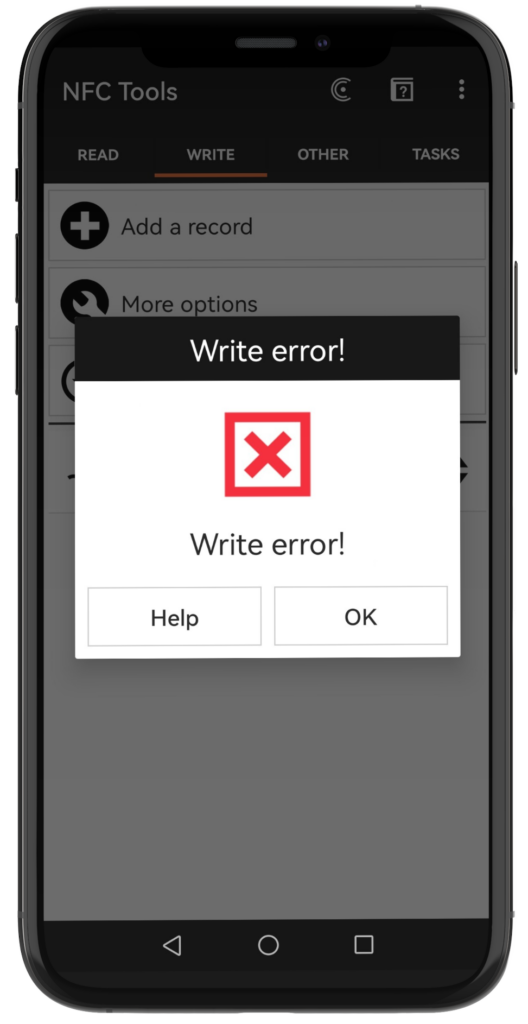
    • Got an error? Tap OK on the app and try the scan again.
    • Tag not responding? Try adjusting the position of your phone against the tag.
    • Still stuck? Message or [Contact us on WhatsApp] for quick help!